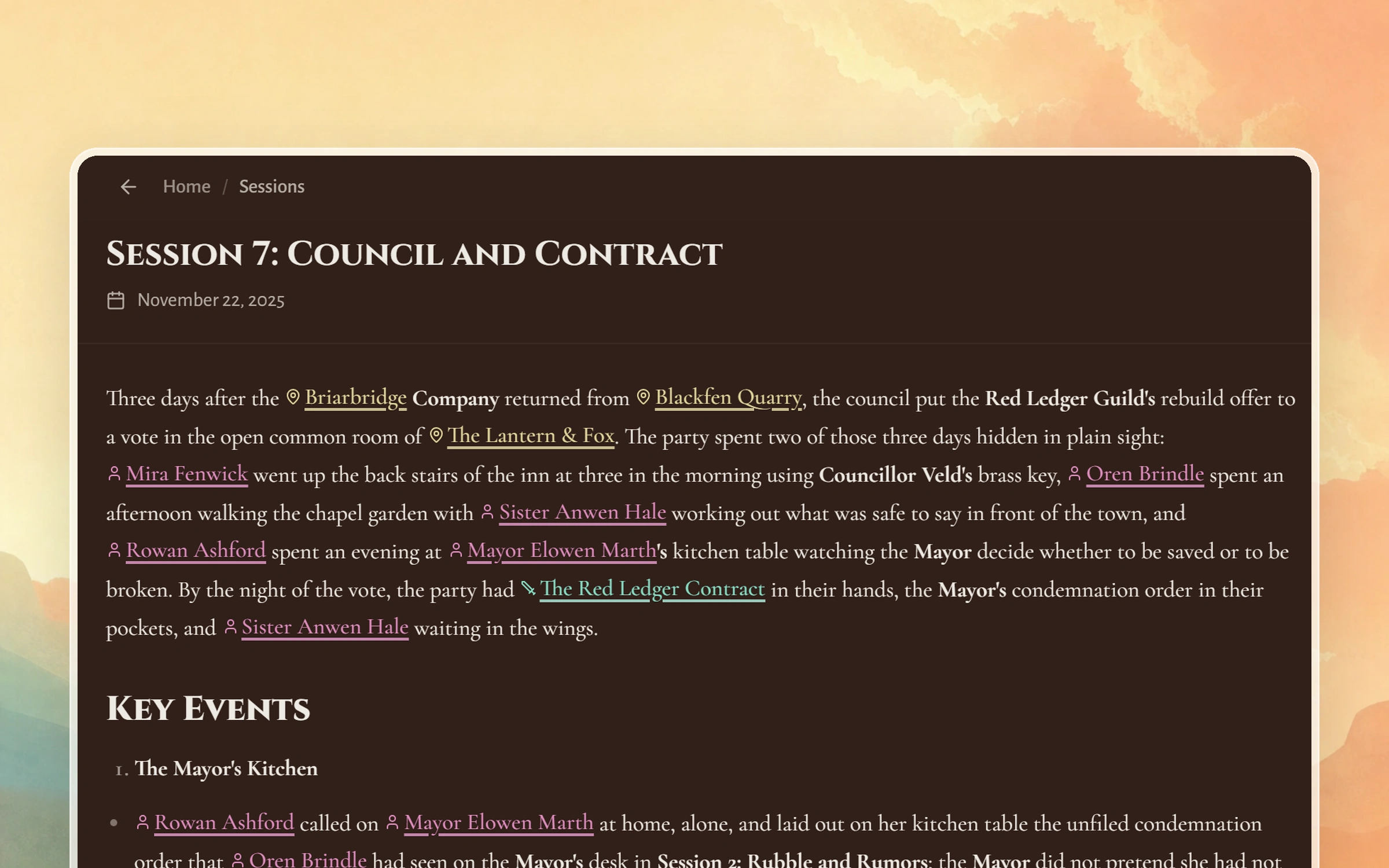
This guide follows one game night from the table to a finished recap in Saga20. By the end, you will have a session summary, labeled voices, and new World entries from the session.
Add your party before you play
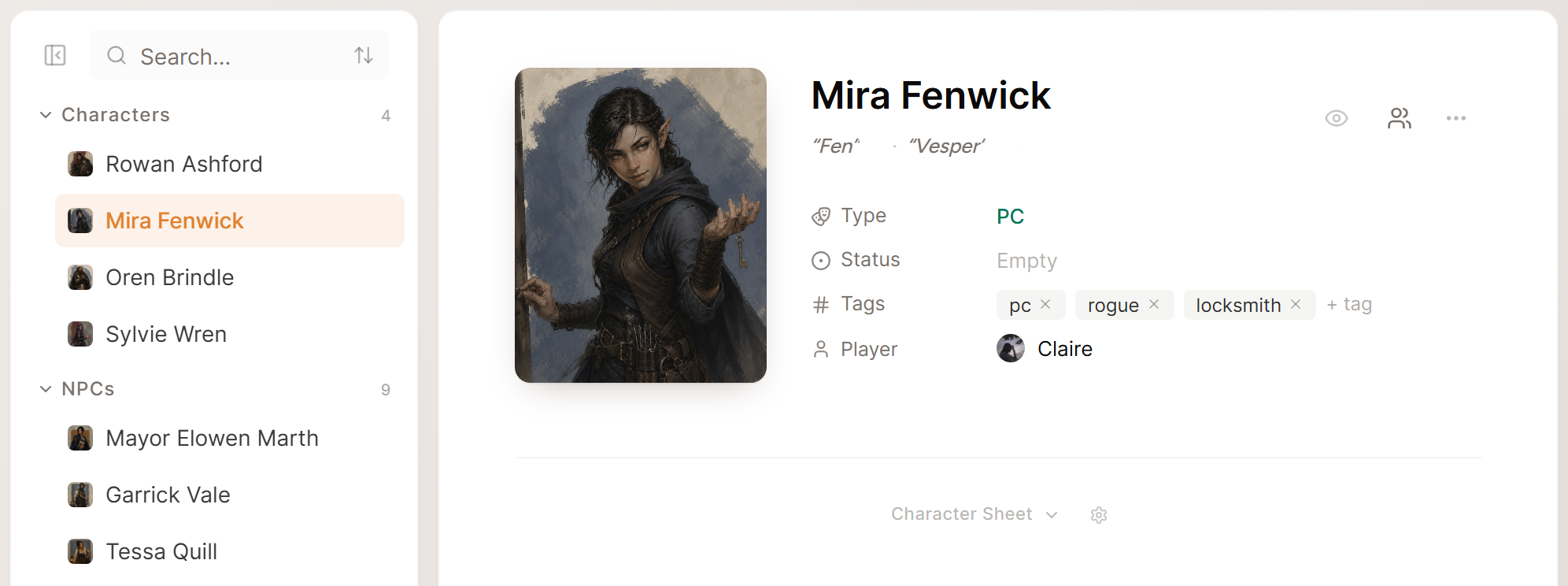
Saga20 reads the names in your world while it writes each summary, so a party added ahead of time comes back spelled the way your table spells it. Add each player character and the NPCs you expect to meet. If you named your party when you created the campaign, they are already in World.
The speaker labels use the same list. When a voice needs a name after the session, your player characters are waiting to be picked.
Set your player count once, in Settings, then Campaign, under Player Count (Includes GM). Count the people rather than the characters, and include yourself. Saga20 relies on that number to keep voices apart, and when somebody is absent you can drop it for a single session.
Record the table
Tell your group before you record and get everyone's agreement. At an in-person table, one phone or recorder near the middle is usually enough. Online groups record the call with a tool such as Craig or OBS, then save one mixed file.
Saga20 accepts one MP3 or M4A file for each session, up to 400 MB and 7 hours long. A summary needs at least 15 minutes of recorded play, so let the recorder run for the whole session.
Upload the recording
Each game night gets its own session, made with Create a session in the sidebar. The upload starts as soon as you choose the file, so keep the page open until it finishes. After that, processing carries on without you, and most sessions are ready within 5 to 10 minutes.
Each processed recording uses one audio session from your plan. Settings, then Billing shows how many you have left in the current billing cycle.
Label the speakers
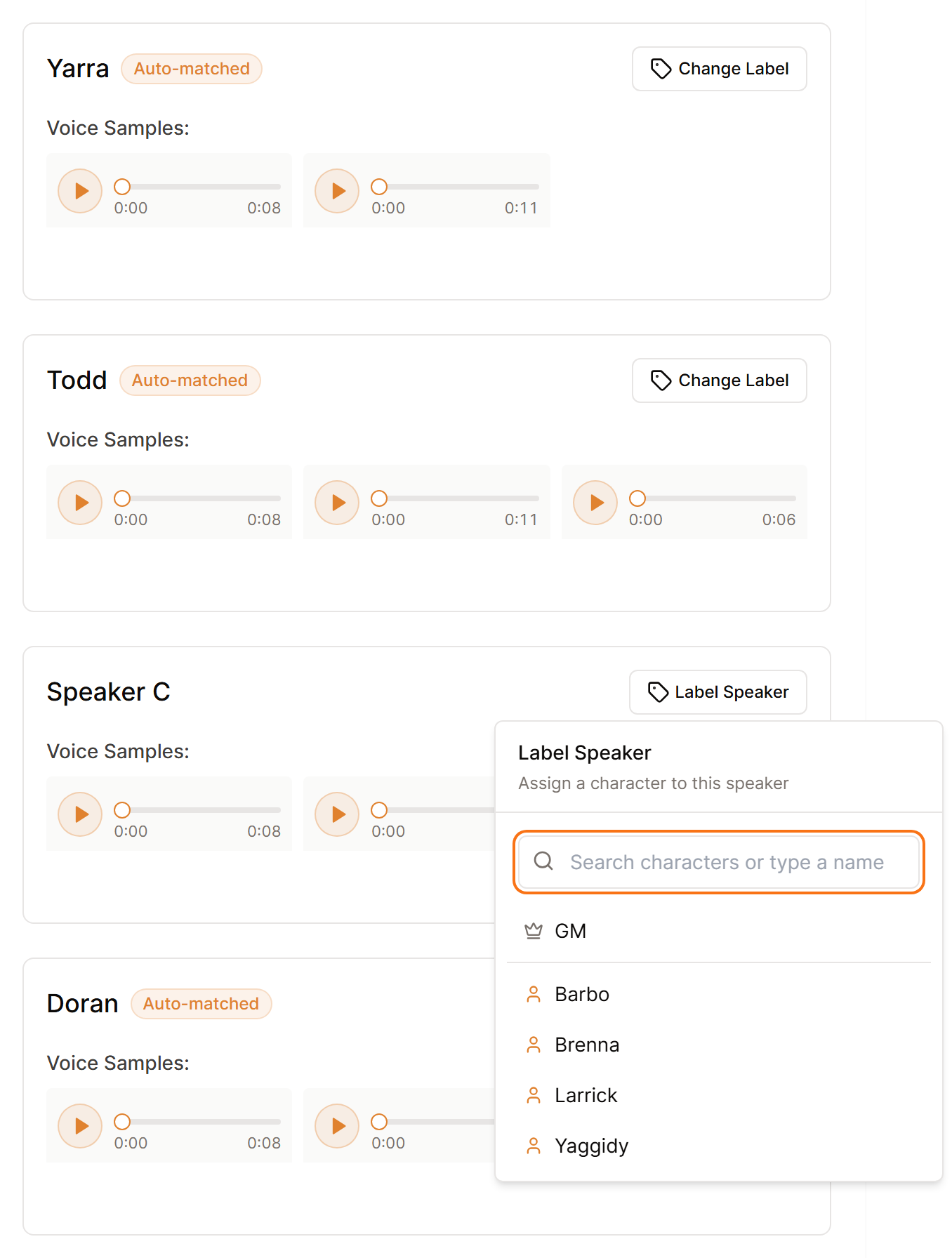
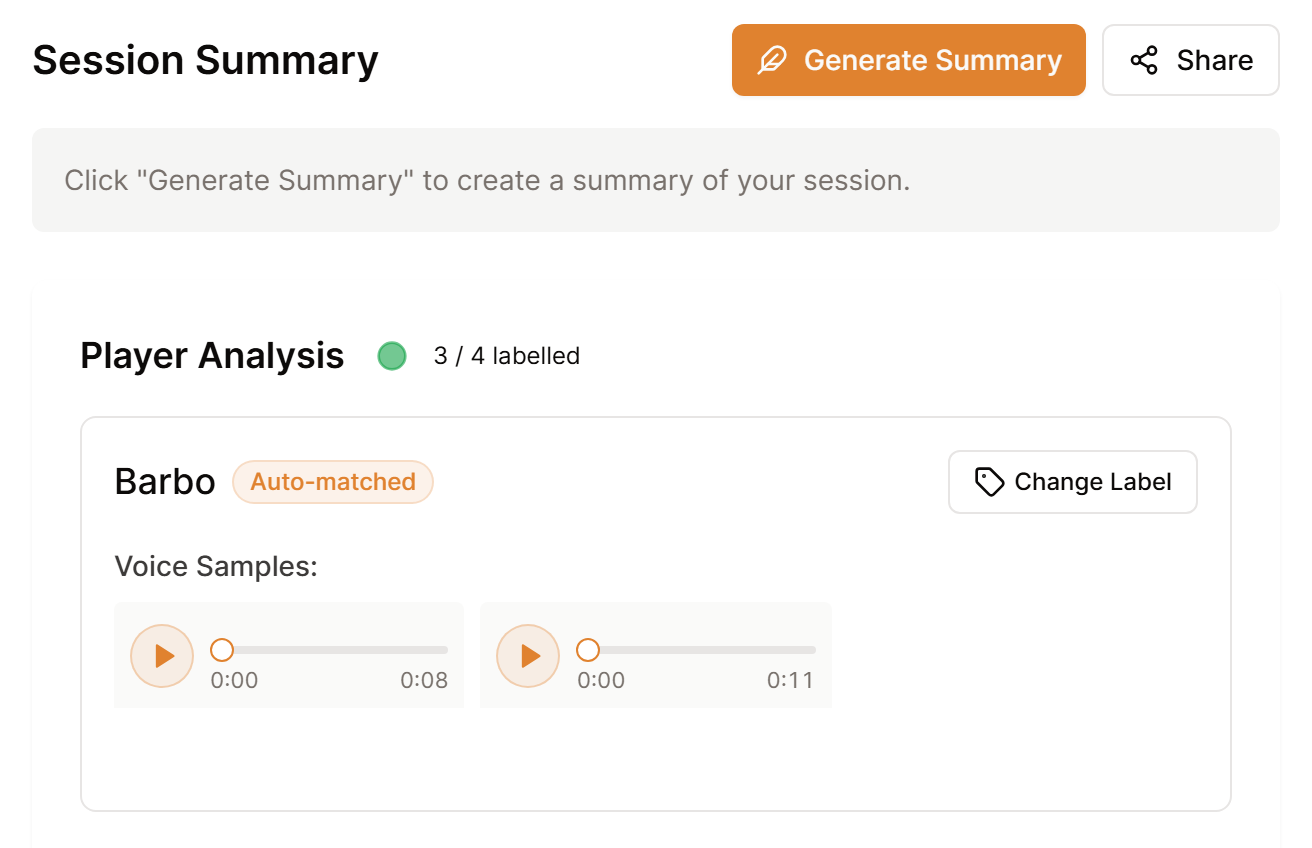
When processing finishes, the session page shows Player Analysis with every voice Saga20 separated, and each voice has short samples to play. Give each voice the name of the character that player runs. Your own voice and any duplicate can stay without a label.
You label each regular player once. Every label builds a voice profile, so in later sessions your regulars come back already named and marked Auto-matched, and you spend less time on the review.
Label before you generate the summary. The speaker list is there to set up the first summary, and it closes once that summary is written.
Generate the summary
New tables often skip this step. Processing prepares the session, but Saga20 does not write the recap until you ask for it, and a note under Session Summary points you to Generate Summary. Select it once the labels look right, and Saga20 writes the recap onto the page while you watch.
Choose your style before that first click. Format, length and extra sections live in Settings, then Processing, beside campaign rules for names and tone. Setting them first saves you from regenerating the summary later.
Review World updates and share the recap
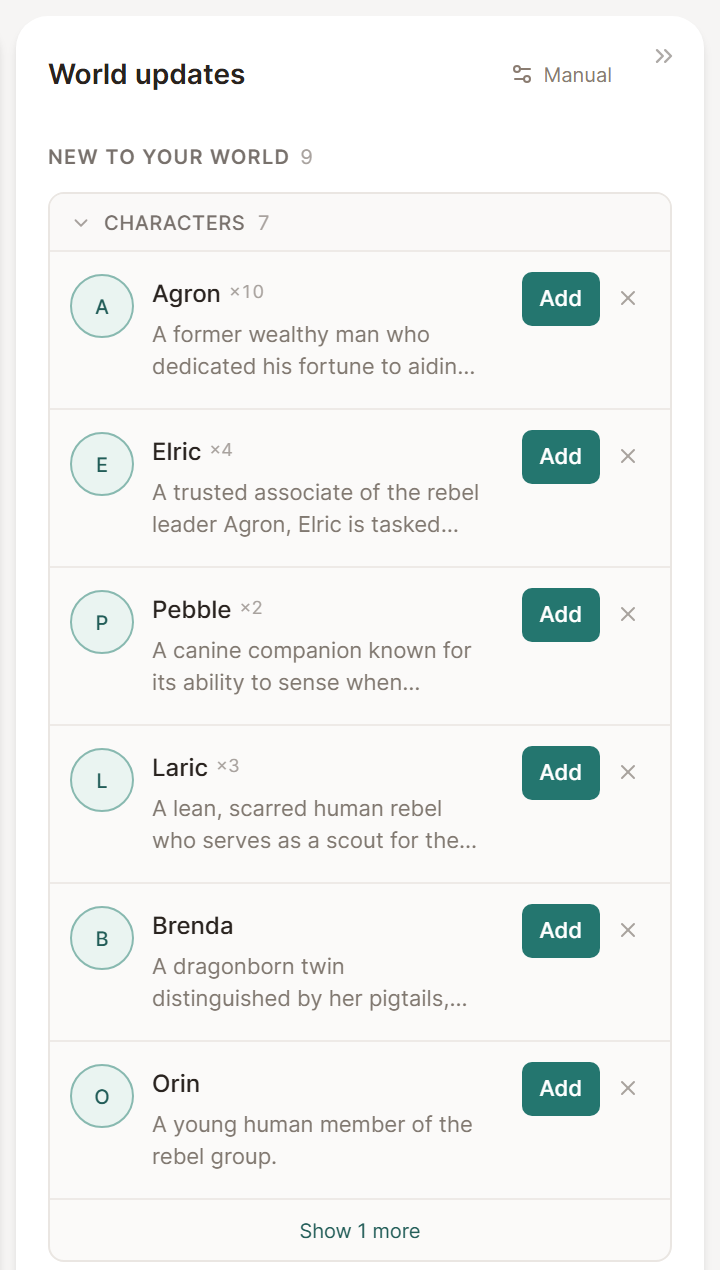
When the first summary lands, the World updates panel opens beside it on a computer. New characters, locations, items, and factions wait under New to your world, and none of them joins your world until you select Add. Pages that already exist get their Story so far entries, and the campaign journal moves on.
When the recap reads right, share it. A session link, your campaign wiki and Discord each reach your players in a different way.
When you did not record the session
Some weeks you do not record. Choose Write notes instead on the upload screen and write the recap yourself. Written sessions are free, and they never count toward your plan's audio sessions.
Written notes keep your words exactly as you wrote them. They do not build the world the way a recording does, so there are no speaker labels, generated summary or World updates for them. A campaign you have run for months comes in through campaign import instead, and Session notes vs. audio recording weighs the two habits if you are still deciding.
When you label a name correctly in the first session, Saga20 keeps it for later sessions.