Your player count tells Saga20 how many people speak in your recordings, which helps speaker detection separate voices more accurately. Set it once for each campaign in Settings, then Campaign.
Why the count matters
Speaker detection works from the voices in the recording. When Saga20 knows how many people to listen for, it is less likely to merge two players into one speaker or miss a quiet voice. Larger tables gain the most, since more voices are easier to mix up.
Count people, not characters
Count everyone who speaks at the table, including you. A player who runs two characters counts once.
Set it for your campaign
- Open Settings, then Campaign.
- Select the Player Count (Includes GM) menu.
- Choose the number of people at your table.
- Check that the menu shows your new count.
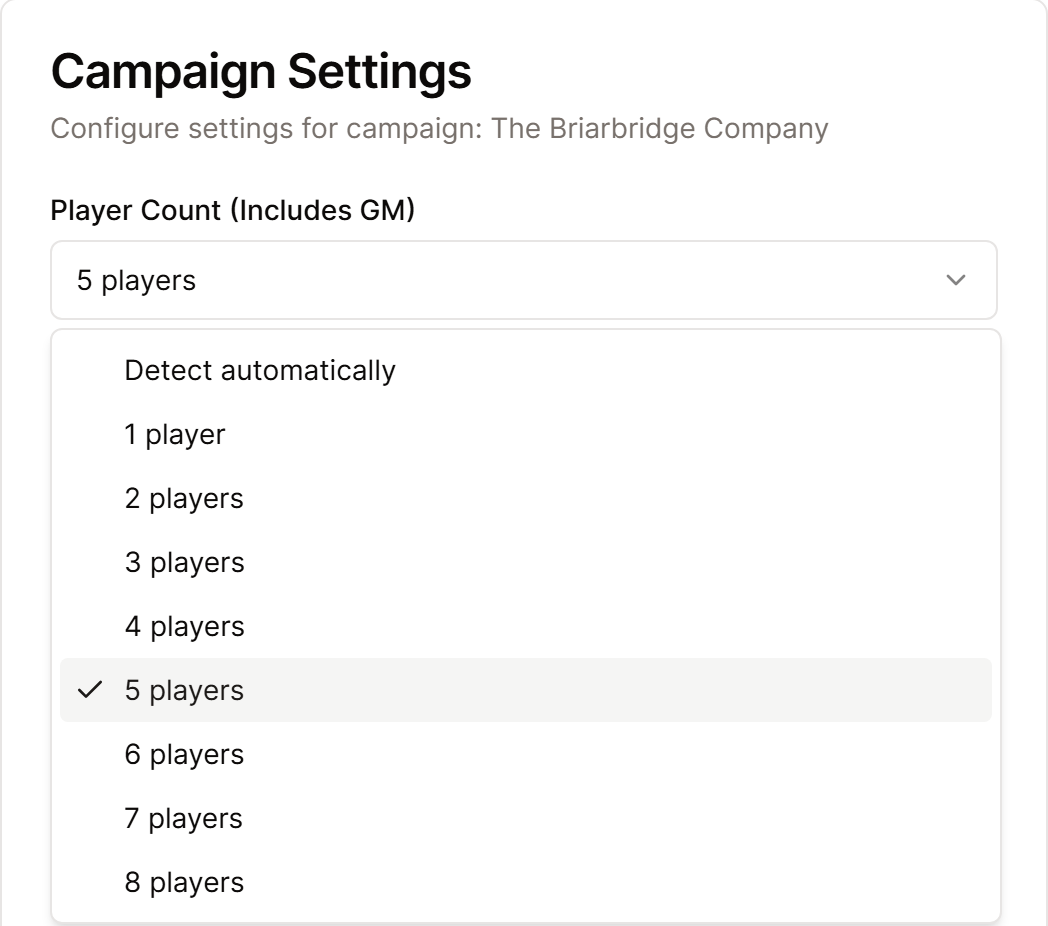
The change saves on its own, and every new session in the campaign uses it.
Detect automatically lets Saga20 work out the count from each recording. A known count gives better results, so set one whenever your group is settled.
Change the count for one session
When someone misses a game night, lower the count for that session only. On the upload page, select the Players button beside the date, then use - and + before you upload. Your campaign setting stays the same.
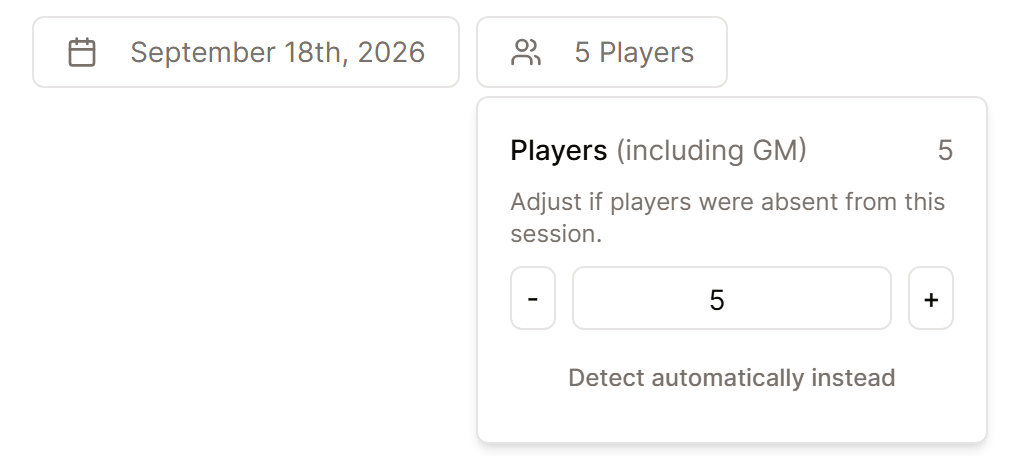
The Players button appears once your campaign has a player count. On your first upload it appears even when the campaign is set to Detect automatically, and the number you choose there becomes the campaign setting.
Set it in the Saga20 app
Open Profile and choose Player count (includes GM) under Campaign. When you set up a recording, Players changes the count for that recording only.
Update the count when your group changes, since a wrong number can split or merge voices. If voices are still mixed up, see Fix a wrong or missing speaker.