After every summary, the World updates panel on the session page lists what that session changed in your world. New characters, locations, items, and factions sit there until you add them.
On a computer, the panel shows up next to your first summary. From then on, use the panel button at the top of the summary to open it, and that button tells you how many updates are waiting.
Add new pages
- Open the session, then look for New to your world inside the World updates panel.
- Pick a name to see where it shows up in the summary.
- Choose Add to build its page in your world.
- Choose the cross next to Add to clear a name you do not want.
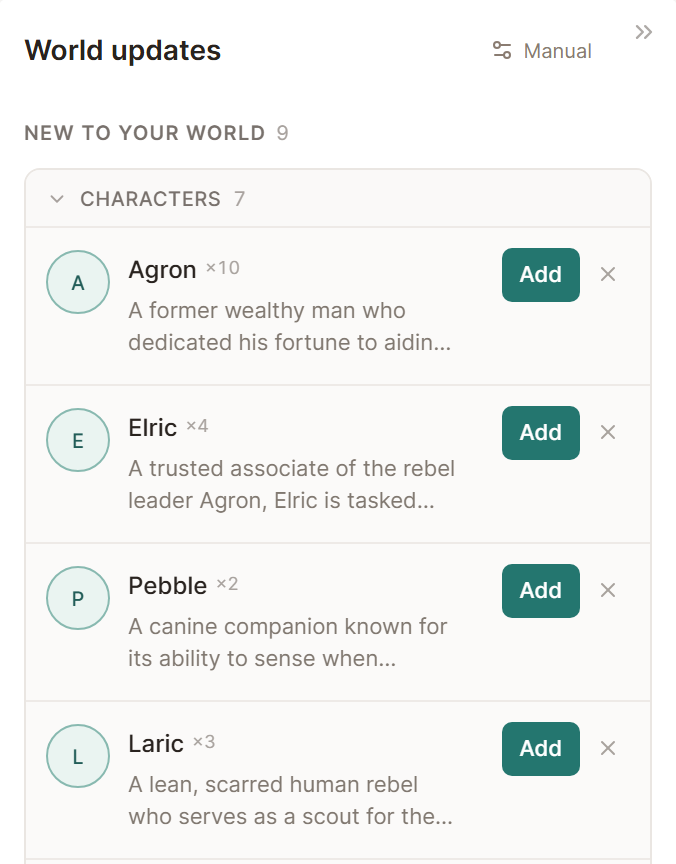
A new character comes in as an NPC. If a name is misspelled, add it and rename the page in World, and the links in your notes follow the new name.
Apply page updates
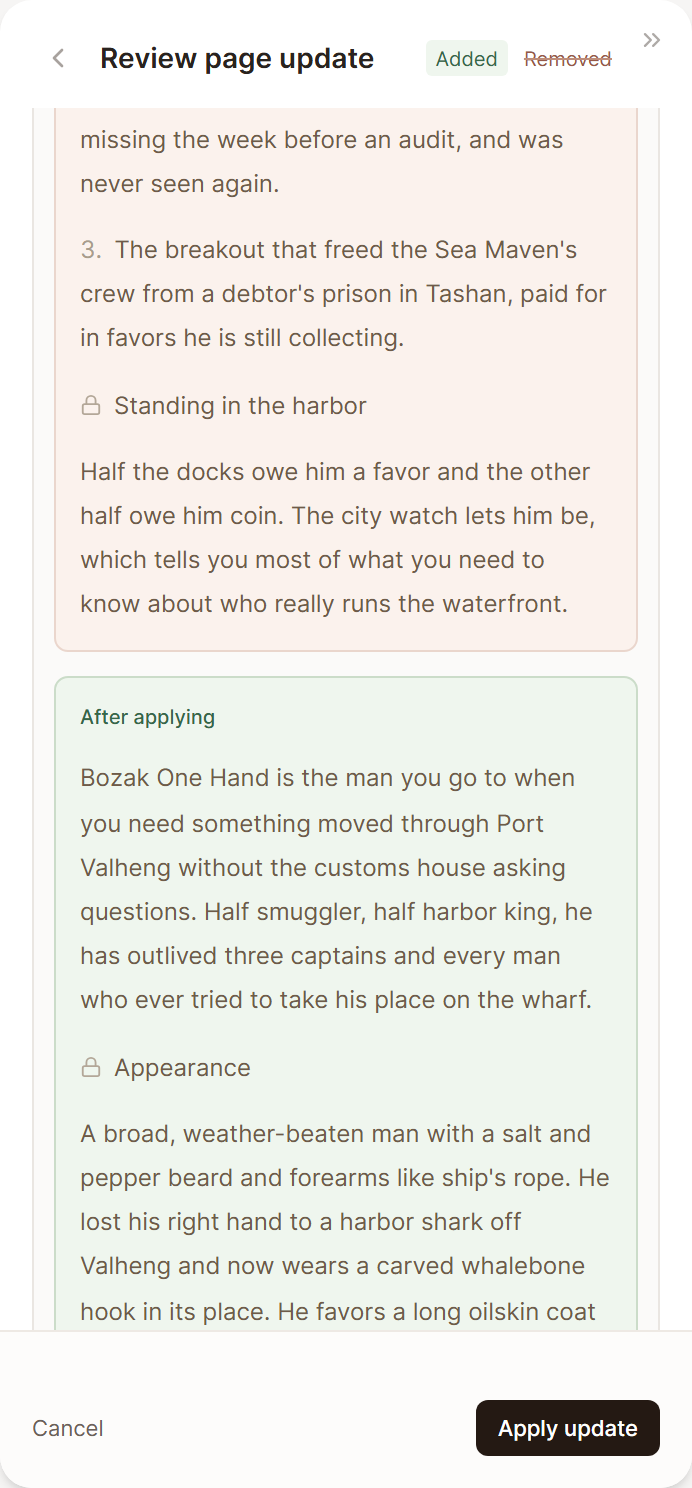
Edits to pages you already have wait under Page updates. Choose Review to see the page before and after, then Apply update. Apply on the row will apply it with no comparison, and the cross clears it.
New nicknames for your characters wait under Also known as, where Add saves them to the character.
The button at the foot of the panel, for example Apply all 6 updates, adds every new page and applies every waiting update in one go. Choose Review all first when you would rather check them together.
Choose Automatic or Manual
Page updates follow a single setting for each campaign, found in Settings, then Campaign, under Page updates. The Automatic or Manual button at the top of the panel opens that same choice.
- Automatic places updates right onto your pages after each session. Anything uncertain still waits in the panel.
- Manual holds every page update in the panel until you apply it.
Until you pick one, page updates wait for you as they do in Manual. New pages wait for Add in both modes.
Once your world looks right, share the session summary with your players.