Campaign import brings an established world into Saga20. It reads your source material, suggests useful world entries, and lets you review everything before it is added.
- Open the campaign you want to use.
- Go to Settings, then Campaign.
- Select Start import next to Import existing world.
- Select your source and add the requested file.
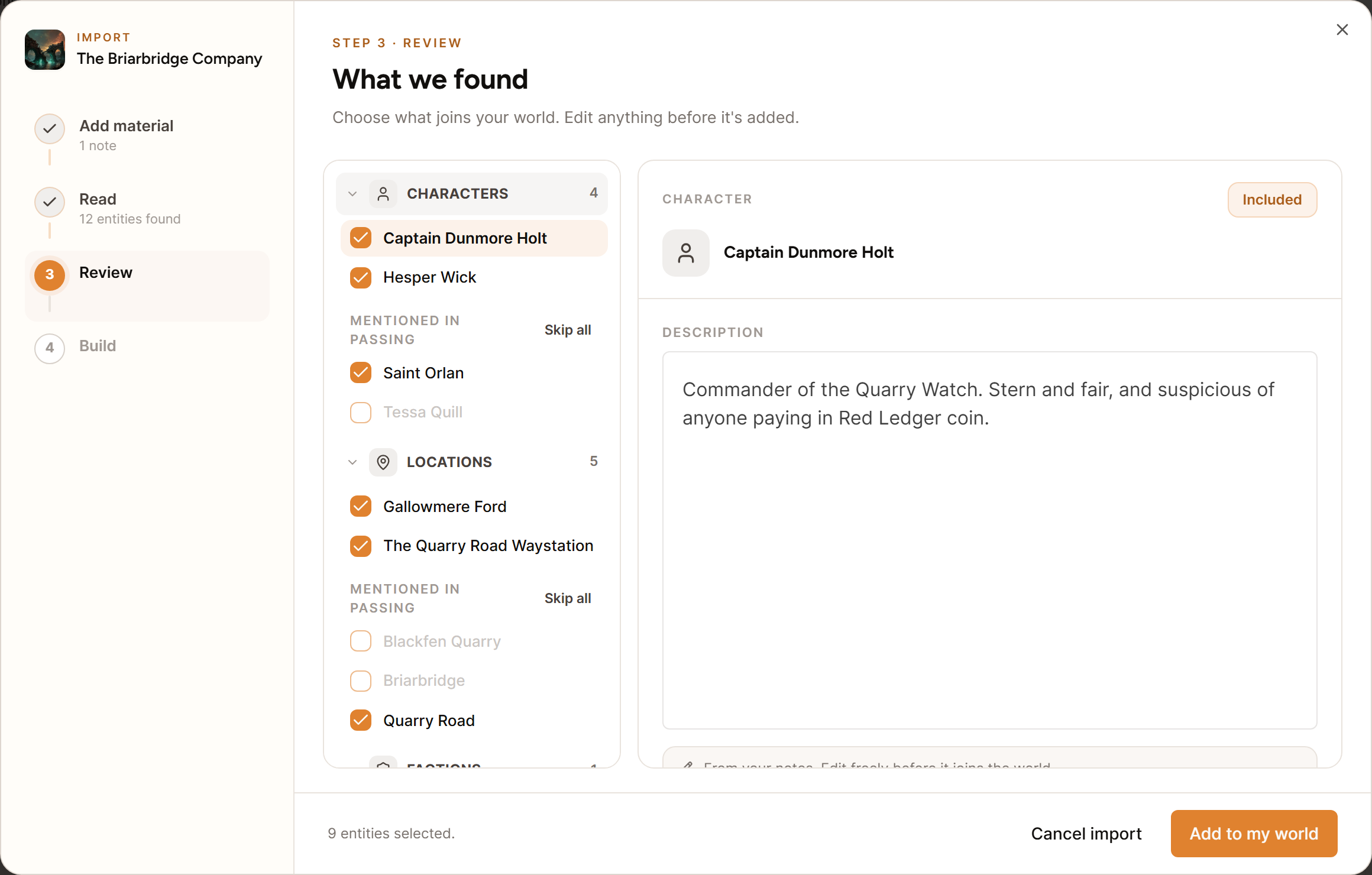
- Go over the characters, locations, factions, and items that were suggested.
- Edit or remove anything you do not want, then finish the import.
Supported sources
- Obsidian vaults or ZIP files
- Notion Markdown and CSV exports
- Google Docs exported as DOCX
- World Anvil exports
- Markdown, plain text, Word, and text-based PDF files
Import everything at once
A single import handles as many as 1,000 files, which covers most vaults and exports in one pass. Group your characters, locations, factions, and items into that same import rather than bringing them in a few at a time.
Every campaign gets a set number of imports within any 30 day window. The limit frees up again once earlier imports age past the 30 day mark. In the meantime, you can create entries by hand in the World Builder.
PDFs that are only images or come from a scanner cannot be read. Running overlapping imports more than once may also produce similar suggestions that you have to merge.
If imported names show up more than once, see Fix duplicate or incorrectly linked world entries.