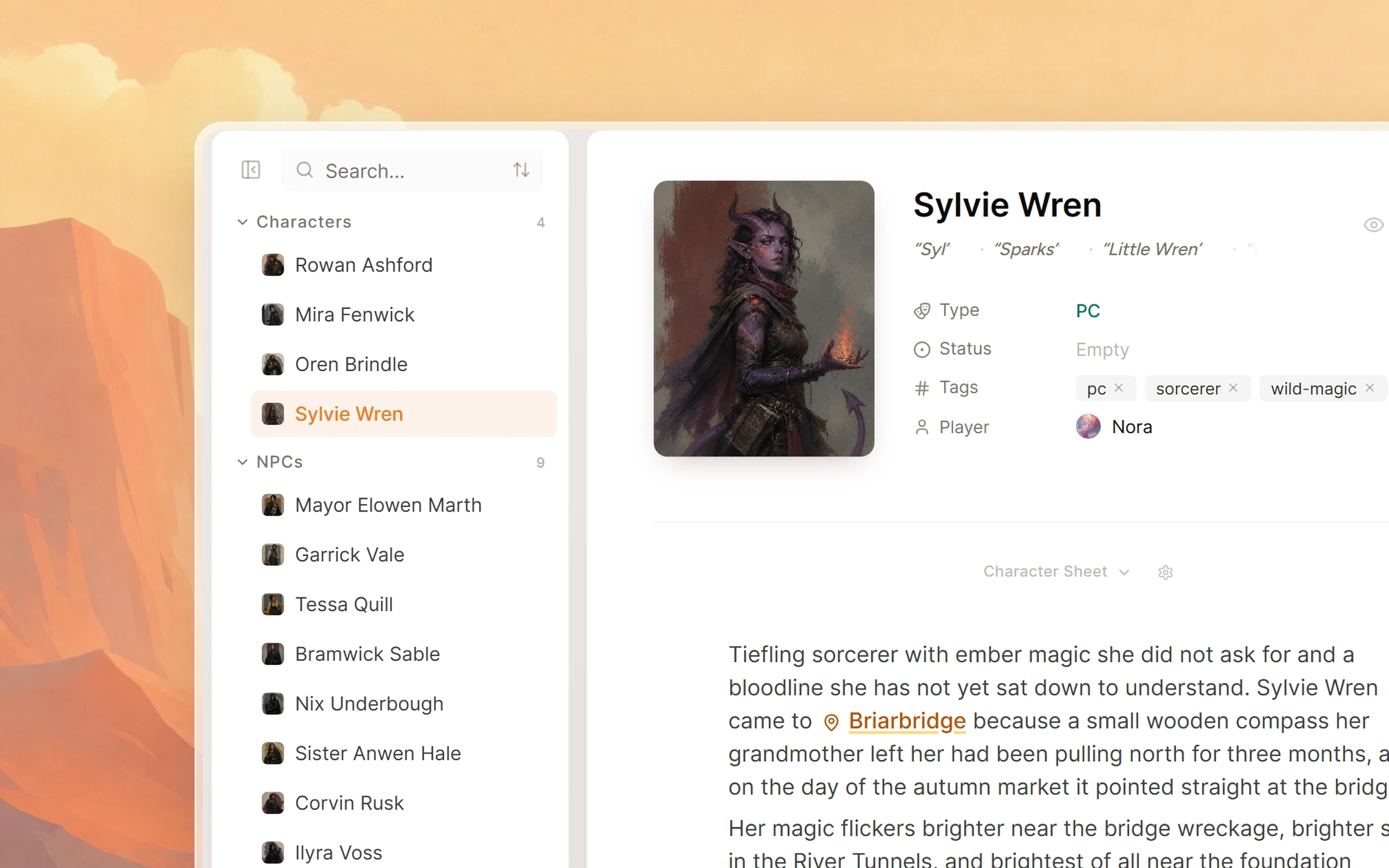
By the time you finish this guide, your World Builder will hold the names your table really uses, tied to one another and to your sessions. Maps, character sheets and your campaign wiki all use those same pages.
Begin with the names your table will hear
Start with the player characters, then the NPCs the party has already met and the places they have visited. Saga20 reads these names when it writes each session summary, so a half-heard tavern keeper comes out spelled right in the recap. On a character page, add nicknames and titles as aliases, and Saga20 knows that the Duke and Duke Marin are one person.
A name and a line or two of description is enough to start. Twenty well-named pages do more for your recaps than two hundred empty ones, and the pages fill in as you play.
If your world already lives in documents or another tool, import it first and fill the gaps by hand afterwards. For how much to prepare before the first session, the D&D world building guide on the Saga20 blog covers the method.
Link everything with @ mentions
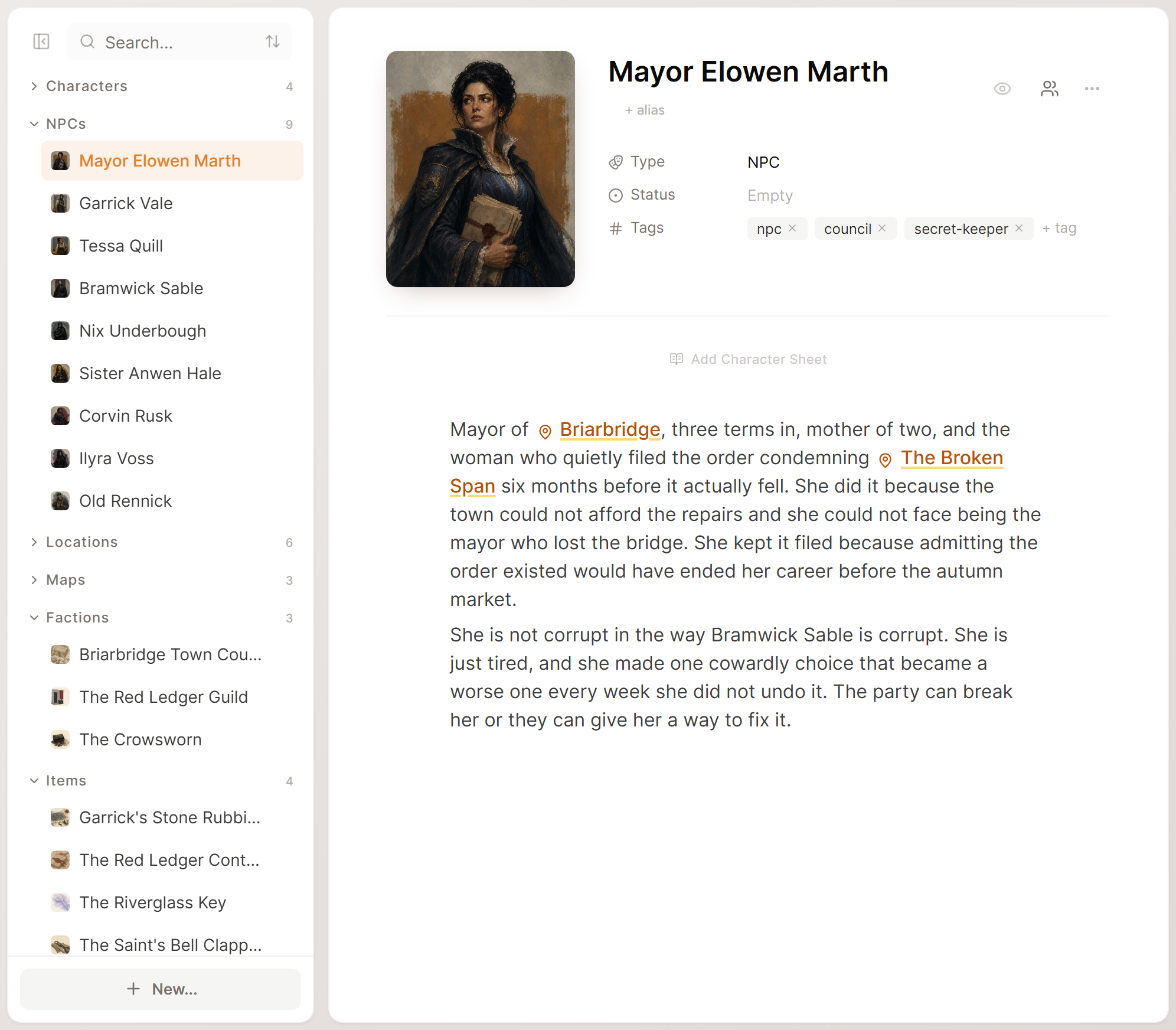
Type @ in any world page or session notes and pick an entry to link it. A linked name opens its page, in Saga20 and on your campaign wiki. The links you write on world pages also draw the lines in the Campaign Graph, so an NPC page that names her guild and her rival shows both connections.
You do not need every page ready before you play. Session notes link names for you: open a session and every name that has a page shows as a link, including pages you created after that session. Give the innkeeper you improvised in session two a page, and her name links in every recap you open after that. Written notes save the new links straight away, and a recorded session keeps them the next time you edit its recap.
Shape the World Builder to your setting
The built-in sections cover characters, NPCs, locations, factions, items and maps. When your setting needs more, add a section of your own from New..., then New type.... A seafaring campaign might want Ships, and a campaign full of gods might want Deities. Starters such as Bestiary and Pantheon arrive with a page template already written, so each new entry opens with headings ready to fill in.
Show me the New menu, opens in a new tab
Folders group entries inside any section except Locations and Maps, where places nest under their parent location instead. Rename your own sections to the words your table uses, reorder any section, and hide the ones you never touch. The built-in names stay fixed.
Characters take a portrait, and other pages take an icon and a cover image. Portraits appear beside linked names in Saga20 and on the wiki, so a few good ones make a long recap easier to scan.
Bring in what you already wrote
Campaign import reads notes from documents, Obsidian, Notion and World Anvil exports. It suggests characters, locations, factions and items, and you review each one before it joins your world. Find it in Settings, then Campaign, under Import existing world.
Run one complete import before building the same pages by hand. Two overlapping imports leave you merging duplicates later.
Put it on a map
A map shows where your locations are. Upload any map image, pin characters, locations, factions and items onto it, and every pin opens its page. Link a city map to its city and you can step from the region map straight into the streets.
Give players their sheets
Character pages can carry a full character sheet, from the D&D 5th Edition or Pathfinder 2e template or imported from a D&D 5e PDF such as a D&D Beyond export. Once a player claims their character on the campaign wiki, they keep their own sheet up to date. Only you and that player can see it.
Let sessions do the upkeep
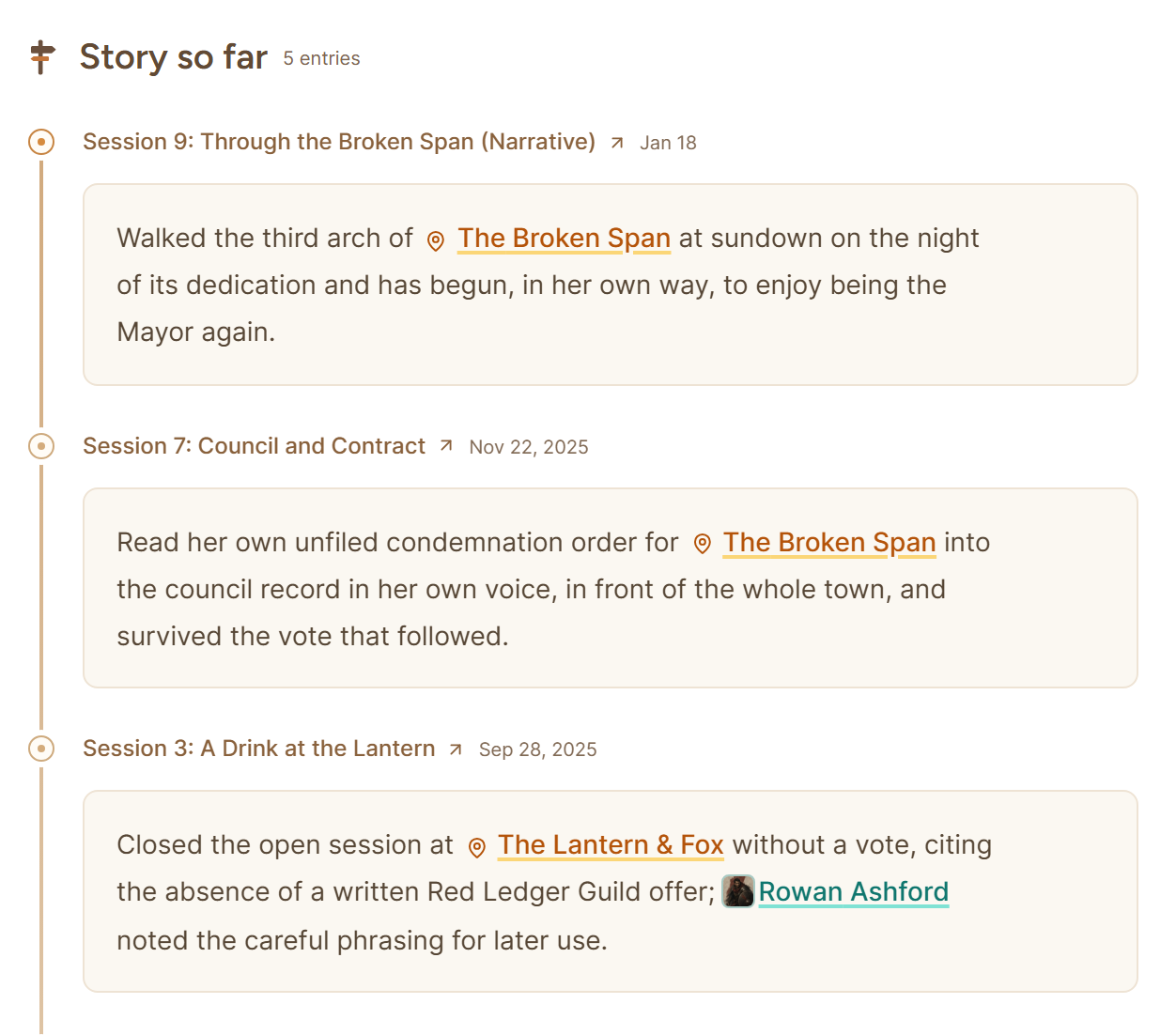
After each recorded session, Auto Wiki adds a dated entry to the Story so far of every page the party touched and keeps page descriptions current. Anyone new, like a rival captain, waits in World updates until you choose Add.
The Campaign Graph on your Dashboard grows with every session. Double-click an entity there to open its page, and use Filters when the web gets crowded.
Build what the last session needed, and add the rest as you play.