Every custom section carries two names: the plural on the sidebar heading and the singular on each entry. You can change both, and the control is easy to walk past, so here is the exact path.
Open Organize sections
- Open World and hover the section heading in the sidebar.
- Choose the three dots that appear beside it.
- Choose Organize sections.
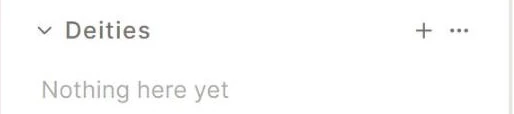
The three dots stay hidden until you hover, which is why they are easy to miss. The entry count sits in the same spot until then.
Change the two names
- Click the section name in the list.
- Enter the plural under Section (plural).
- Enter the singular under Each entry (singular).
- Choose Save.
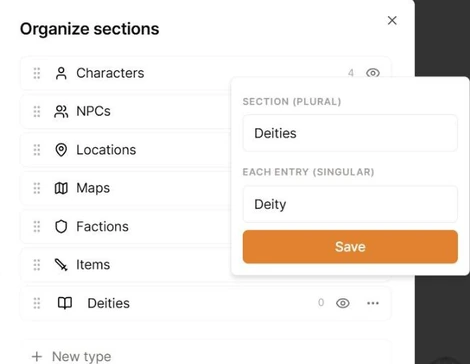
A section named Deity becomes Deities on the sidebar while each entry stays a Deity. Saga20 guesses both names when you create a section, and the guess is often the same word twice, so this is the place to fix it.
Names apply to one campaign, so each table can use its own vocabulary. Anything from 1 to 60 characters is accepted.
What else this panel does
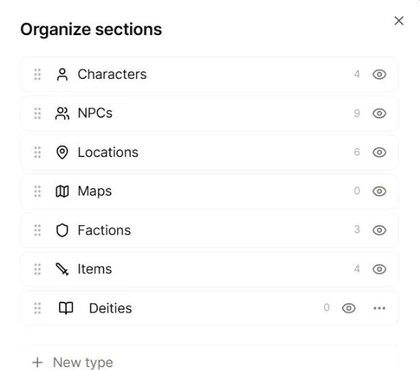
Drag the handle to reorder any section, and use the eye to hide one you are not using. Hiding keeps the entries, it only removes the section from the sidebar.
Custom sections get more: click the icon to change it, and use the three dots on the row to edit the page template new entries start from, or to delete the section.
Characters, NPCs, Locations, Maps, Factions, and Items are built in. They can be reordered and hidden, but their names are fixed.
Add a section
Choose New... at the foot of the sidebar, then New type.... Name what you are tracking, or pick a starter such as Bestiary, Pantheon, or Lore. Starters arrive with a page template already written.
For the entries themselves, see Create and edit world entries.