A custom section stores whatever your campaign follows besides characters, NPCs, locations, factions, items and maps, for example Deities, Ships or Rumors. You make one with the New... button at the bottom of the World sidebar.
Create a section
- Open World and select New... at the bottom of the sidebar.
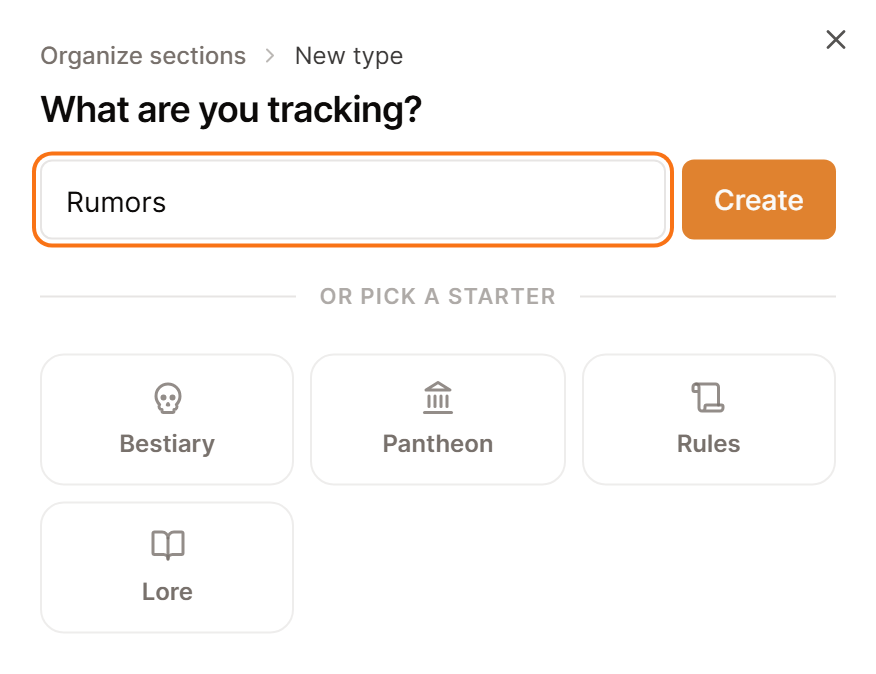
- Select New type....
- Enter a name for the section, for example Deities or Ships.
- Select Create.
You can choose a starter instead: Bestiary, Pantheon, Rules or Lore. Each starter arrives with a page template already written.
Show me the New menu, opens in a new tab
Saga20 also gives each entry a singular name, so a section named Deities turns each page into a Deity. To change either name, see Rename a world section.
Add entries
Hover over the section heading and pick the plus, or select the section from New.... Every new entry uses the section's page template, so a Deity from the Pantheon starter opens with Domains, Tenets and Worshippers that you fill in.
To write or change a template, pick the three dots on any section heading and choose Organize sections.... Then pick the three dots on your section's row and choose Edit page template.
Organize a section
Choose New folder from the three dots on the section heading to group its entries. Then use Move to in an entry's three dots menu to file it.
To tidy the sidebar, hide a section with the eye in Organize sections. Bring it back from New..., then Hidden sections. Deleting a section from the same list deletes the entries inside it too.
To link the new pages from your session notes, see Link world entries in session notes.