The Campaign Graph draws every character, location, faction, and item in your campaign and the connections between them. It sits on your Dashboard, and it also appears on your campaign wiki.
Your links arrive in two ways. First, the @ links you add yourself on world pages. Second, the links Saga20 discovers in your recorded sessions. Inside Filters you will find them under Links, listed as Mentions and Enrichment Events. You can turn off either of the two.
Find your way around a busy graph
A campaign of any size gets crowded fast. The Filters button holds everything that makes it readable again, and it is easy to walk past.
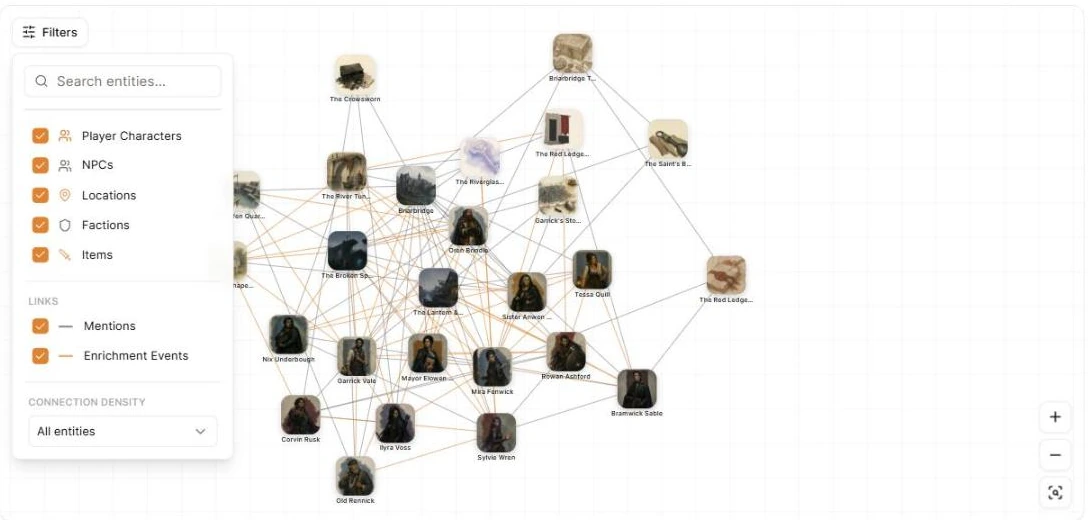
- Search entities finds a name and moves the view to it. A match stays visible even when a filter would otherwise hide it
- Turn whole types off, so you can study Locations and Factions without the cast in the way
- Connection density hides entities with few links. Connected only, 2+ connections, and 3+ connections each show only the entities with at least that many connections
Hover any entity to fade everything except that entity and what it touches. Hovering a line does the same for the two ends of it.
Open an entity
Open a World Builder page by double-clicking an entity on the Dashboard graph. Clicking once does nothing, and that trips up most people.
This works on the Dashboard graph. On the wiki the graph is for reading.
Move things around
Drag an entity to pull it clear of a cluster. The graph is a live simulation, so it settles back once you let go, and the arrangement is not saved between visits. When you want a lasting way to focus on one part of your world, use search and the density filter instead.
You can zoom with the wheel or the plus and minus buttons, and Fit graph brings everything back into view.
Get cleaner connections
- Use @ mentions to link names that matter on world pages
- Use one world entry for each person or place
- Add aliases instead of creating a second entry
- Keep entry names short and distinct
The graph reflects the links recorded in your campaign, so it grows as you process sessions and connect more pages. If a connection points at the wrong entry, correct the mention in the page it came from. See Fix world entry links and duplicates.
The graph needs a wide screen and asks you to switch to a larger display on a phone.
To see how sessions bring in connections, read How Auto Wiki keeps your campaign up to date.