The campaign wiki turns the world you already keep in Saga20 into a public site. Your players open one link and read it without an account.
Turn the wiki on
- Select Settings, then Campaign.
- Turn on Campaign Wiki.
- Choose Open wiki to see it in a new tab.
- Choose Copy link, then share it with your group.
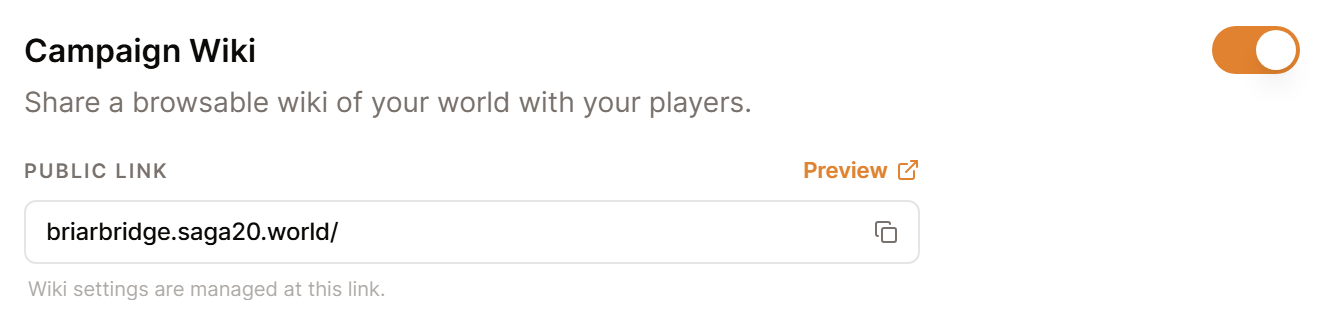
Once you switch it on, the Campaign Wiki button on your Dashboard opens it as well. Until then, that button opens a page that tells you the wiki is turned off.
Your characters, locations, factions, items, and maps are there straight away. Recaps join them as you make each session public.
Choose what the front page shows
Owner controls live on the wiki itself. Open it and select the cog to reach Owner settings.
Views sets the large panel on the left. Drag Featured and Graph into the order you want, and use the eye to hide either.
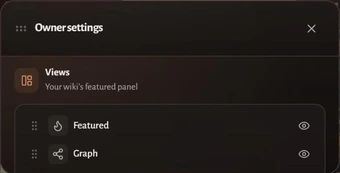
Pin up to six entries to the spotlight. Empty slots fill from entities that have art, so it looks right before you pin anything. Featuring a map adds a Map view.
Arrange the entity tabs
Entity tabs is the row along the top. Drag a tab to move it, or click one to hide it.
Hidden tabs still appear in the All view. Any custom types you have made sit here beside Characters, Locations, Factions, and Items.
Change the colours and fonts
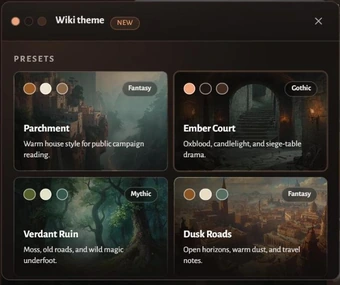
Choose Open beside Wiki theme, then start from a preset.
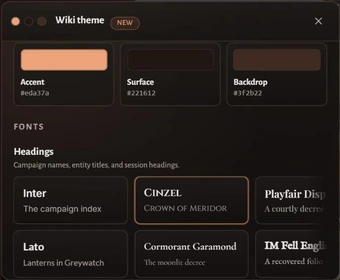
Three colours carry the page: Accent, Surface, and Backdrop. Headings, Story text, and Interface each take their own font.
Background takes preset art or an image of your own. Image visibility and Grain set how strongly it reads.
Nothing reaches your players until you choose Save theme.
Let players claim characters
Allow player claiming lets a signed-in visitor request to play one of your player characters. It comes switched on. You accept each request, and after that they can keep that page current.
To walk one player through it, see Invite a player to claim a character.
Give the wiki its own link
Under Custom link, swap the long default address for something you can say out loud at the table, such as briarbridge.saga20.world.
Custom links are available only on Epic Campaign and Legendary Saga.
For the naming rules, see Set up a custom wiki link.
Keep pages and notes private
The eye at the top of a world entry switches the whole page between Visible in wiki and Hidden from wiki, so a secret stays yours until the party finds it.

A GM notes block keeps one passage hidden while the rest of the page remains shared. Read Add private notes, or Share a GM note with specific players to reveal one secret to a player you pick.
Sessions remain private until you set one to Anyone with link can access. Read Share a session summary.
Read your own wiki before you send the link out. For who sees what, see Share your campaign wiki.