Campaign permissions belong to Early Access. Once you have these controls, go to Settings, then Campaign, and look for People & access so you can invite a Co-GM or have a player take care of recordings.
Invite someone to help run your campaign
A Co-GM can edit campaign content, read every Secret and work on sessions, including publishing recaps. Invite someone you trust with the story your players have not seen yet.
- Go to Settings, then Campaign, and scroll down to People & access.
- Select Invite in the Co-GMs section.
- Select Create invite link, then copy it.
- Send it to the person you want to invite.
They log in, choose Accept invite, and then open the campaign from their dashboard. Every link can be used one time and stops working after seven days. To cancel an invite link you have not used yet, select the cross next to it, or select Remove next to a Co-GM who has joined to stop their Co-GM access.
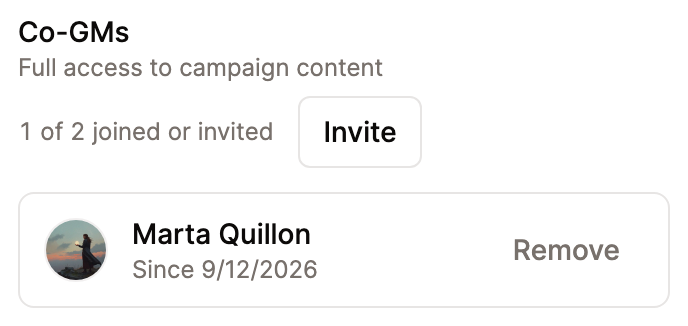
The owner manages billing, campaign settings and access. Recordings and recap generation use the owner's allowances.
Give access to a world page
Give access to a character, location, item or faction.
- Open the page in World.
- Choose the people icon near the top of the page to open Page access.
- Find the player and choose Can view or Can edit.
- Ask them to open the page in your wiki while signed in.
They can read a hidden page with view access, or update its description with edit access. Choose None to remove that extra permission. Public pages remain visible to everyone.
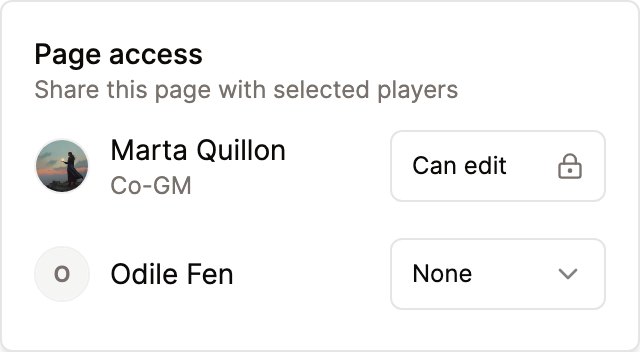
Each row controls one person's access to this page.
With page editing access, a player can write Secrets of their own on that page with /secret, and only that player and you can read them. Your Secrets stay hidden from them. To reveal one, use Share on that Secret block and select its readers separately.
Let a player handle recordings
In People & access, find the player under Recording uploads and turn on their switch. Players appear after you approve their character claim. Turn the switch off here to end recording access. Previous campaign sessions stay saved.
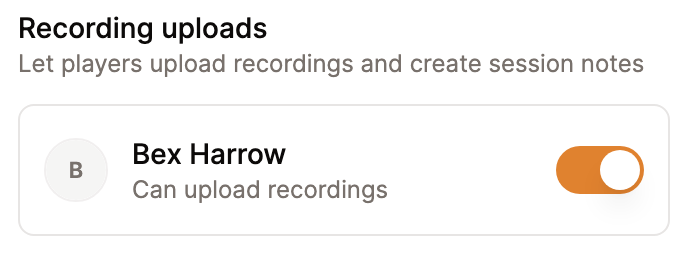
The player can then:
- Open Sessions in the wiki and choose View all.
- Select New Session, name it and upload a recording.
- Wait for processing, then open Player Analysis.
- Listen to available voice samples and use Change Label to correct a speaker.
- Select Generate Summary and review the recap.
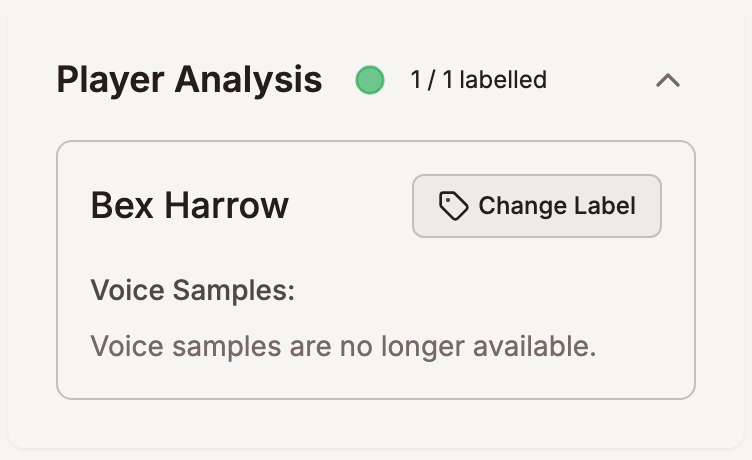
The player can go back to Sessions to open the upload again and carry on editing.
Players can change the title, speaker labels and recap of their own uploaded sessions, including after generation. Secrets stay hidden. Drafts remain private until the owner or a Co-GM publishes them.
For more speaker help, see Label speakers in a session. For recording formats, see Audio file requirements.