Everything in Saga20 sits inside whichever campaign you have open. Each part of it is one click away in the sidebar, and selecting the campaign name at the top brings up your campaigns, settings, and account. If Saga20 is new to you, begin with What is Saga20?.
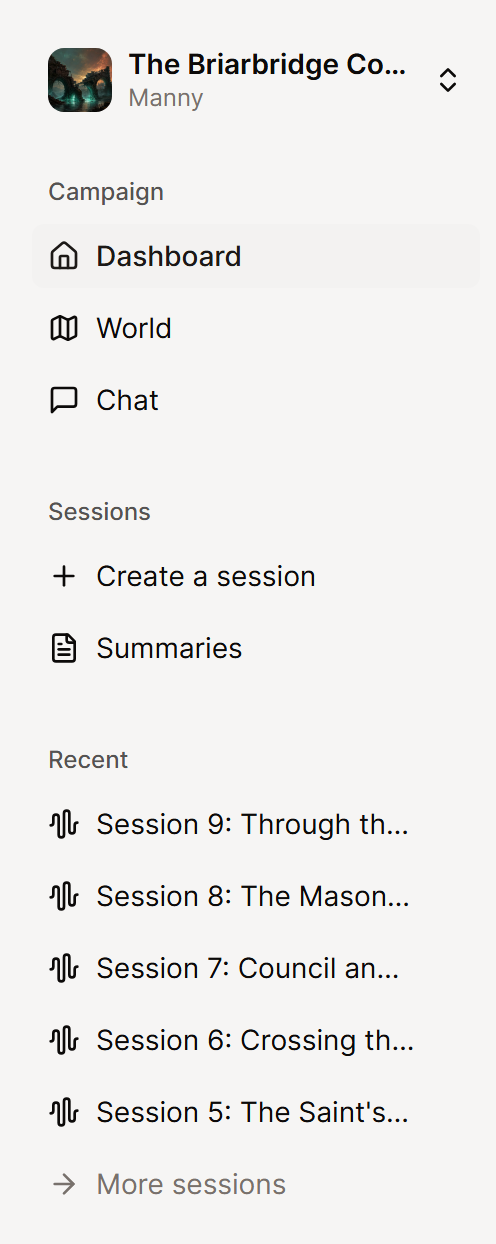
The sidebar
- Dashboard gives you the Campaign Graph and the campaign journal.
- World keeps your characters, locations, factions, items, maps, and any sections you add.
- Chat answers questions about your campaign. A lock beside it means your plan does not include it.
- Create a session begins a new session, where you upload a recording or write notes.
- Summaries lists every session in the campaign.
Your newest sessions appear under Recent, so last week's recap is one click away. Choose More sessions when the one you want is older.
The menu under your campaign name
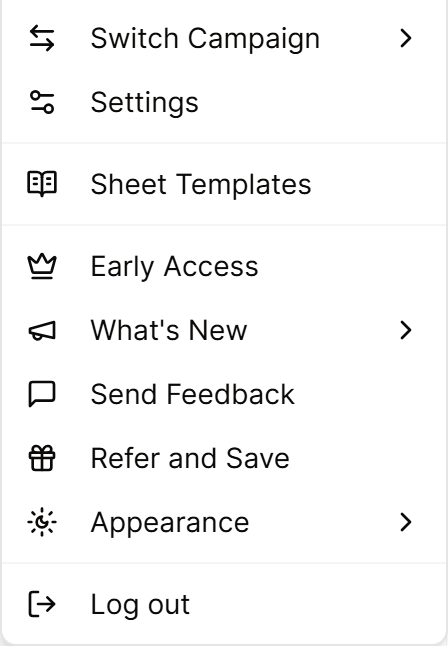
Select the campaign name at the top of the sidebar to open this menu.
- Switch Campaign lists your campaigns, with New Campaign at the bottom. Campaigns you play in appear under Playing In and open their campaign wiki.
- Settings opens the settings for the campaign you have open.
- What's New shows recent changes to Saga20.
- Send Feedback reports a bug or requests a feature.
- Appearance switches between your campaign theme, Light, and Dark.
Every campaign keeps its own sessions, world, language, sharing settings, and speaker profiles, so check which campaign is open before you upload.
Settings
Settings has five tabs.
- Campaign covers this campaign: its name and picture, the campaign wiki, player count, language, import, and Discord.
- API creates keys for connecting other tools to your campaign.
- Processing holds your summary preferences and rules, speaker matching, and voice profiles.
- Billing shows your plan, the sessions you have used, and your image storage.
- Account holds your display name, email preferences, and account deletion.
If you help run someone else's campaign, the menu shows Your account instead of Settings, and it opens your own account settings.
Where your players go
Players read your campaign on the campaign wiki and not the sidebar. There they browse the pages and sessions you share and claim their own characters, and your private notes stay hidden.
Switch on Campaign Wiki in Settings, then Campaign, and use Copy link to send it to your group. You can also open the wiki from Campaign Wiki on your Dashboard.