Maps live in the Maps section of the World sidebar. Upload a map image and Saga20 turns it into a map you can pin your world onto.
Add a map
- Go to World and hover the Maps heading in the sidebar.
- Pick the plus next to the heading.
- Drop your map picture on the dialog, or click the drop area to pick a file.
- Check the name Saga20 took from the file, and change it if you like.
- Select Link a location if the map shows a single spot in your world.
- Select Create map.
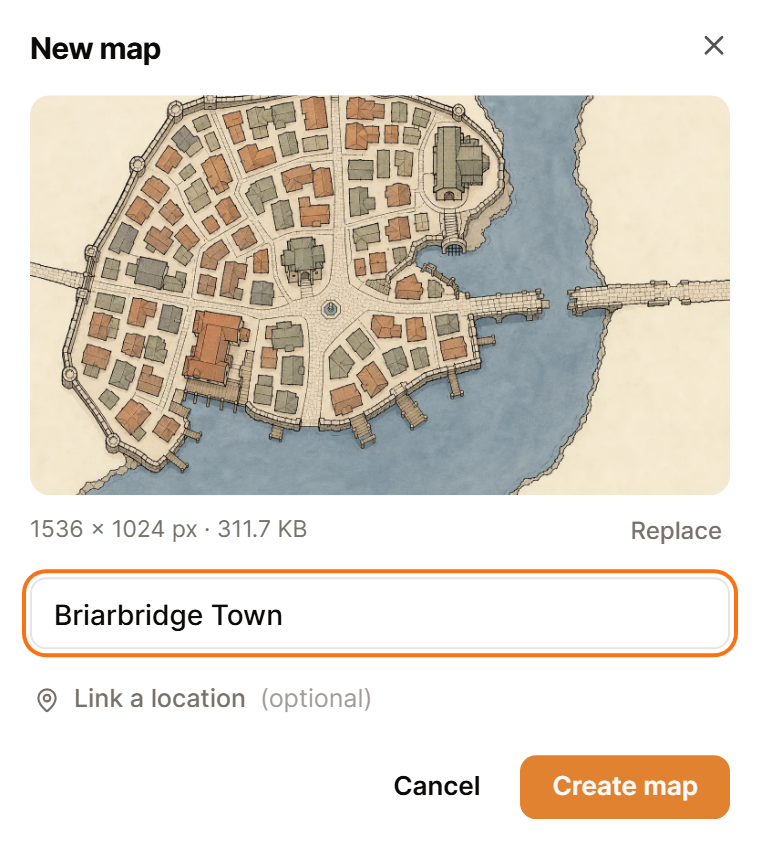
The map opens once the upload ends. In a campaign with no maps yet, the Maps page shows Lay down your first map, and its New map button begins the same steps.
Show me the Maps section, opens in a new tab
Images that work
Saga20 takes PNG, JPG and WEBP images up to 25 MB. A map from a map maker, a scan of a hand-drawn page and a photo of the sketch from your table all work.
Map uploads need a paid plan, and each map counts toward your image storage. If an upload stops with a storage message, see Check your image storage.
Rename, link or delete a map
Hover a map in the sidebar and pick the three dots. From there you can Rename it, Link to location, Hide from wiki or Delete map.
Each location can hold one map. Linking a city map to its city lets you step into it from a pin or area on your region map.
Deleting a map wipes its pins, areas and routes. Your characters and locations stay as they are.
Maps show on your campaign wiki while the wiki is on, so hide any map that would spoil a surprise.
Continue with Pin places on a map.