Open Settings, then Billing. The Image Storage card shows what you have used, with a bar filling up against what your plan includes.
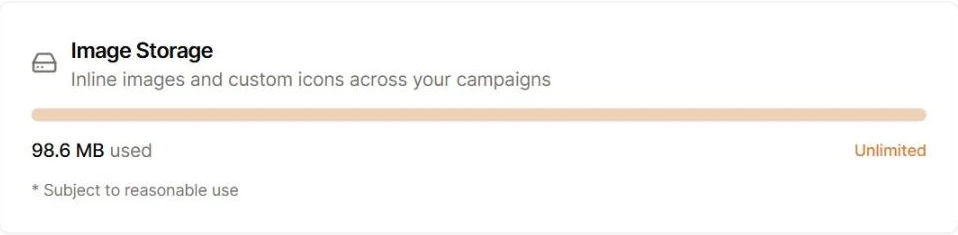
The allowance covers your whole account, not one campaign, and every campaign you own draws on the same pool. Uploads by your players count against you as well, because storage is always billed to the campaign owner.
Warnings before you run out
The card changes colour as it fills, so you get notice before anything stops working.
- Past 75 percent it turns amber: Over 75% of your storage is in use. Consider upgrading for more space.
- Past 90 percent it turns red: Running low on storage. Delete unused images or upgrade your plan.
What happens when it is full
Uploads stop. Existing images, campaigns, and sessions are untouched, and nothing is deleted. You will see a message such as Storage quota exceeded. Delete images or upgrade your plan. when you try to add another one.
A player who hits your limit sees a different message asking them to talk to you: This campaign has run out of image storage. Ask your DM to free up space or upgrade.
Nothing else in Saga20 is affected. You can still record, process sessions, write, and share.
Free up space
There is no single screen for managing images, so free space where the image lives.
- Delete a custom icon from the icon picker. Hover the icon, choose the cross, then confirm
- Delete a map you no longer use
- Remove an image from inside a page, which releases it shortly afterwards
- Delete a world entry you no longer need, which releases its images
Removing a cover image from a location, faction, or item does not change your usage, because those pictures never counted toward it.
For what does and does not count, see What does storage include?.