A pin marks the spot where something in your world rests on a map. Connect it to a character, location, faction or item, and the pin opens that page.
Drop a pin
- Open a map from the Maps section in World.
- Press P, or select Place a pin in the toolbar at the bottom of the map.
- Click the spot where the pin should go.
- Pick an entry under Link to your world, or type in Name this pin to keep it unlinked.
Place entries from your world
Select Add from your world in the toolbar, or press A, to show your characters, locations, factions and items. Drag one onto the map, or click it and then click the spot. You can also right-click the map and select Pin a location here or Pin a character here.
Each entry can have one pin on a map. Picking one that is already placed moves the view to its pin.
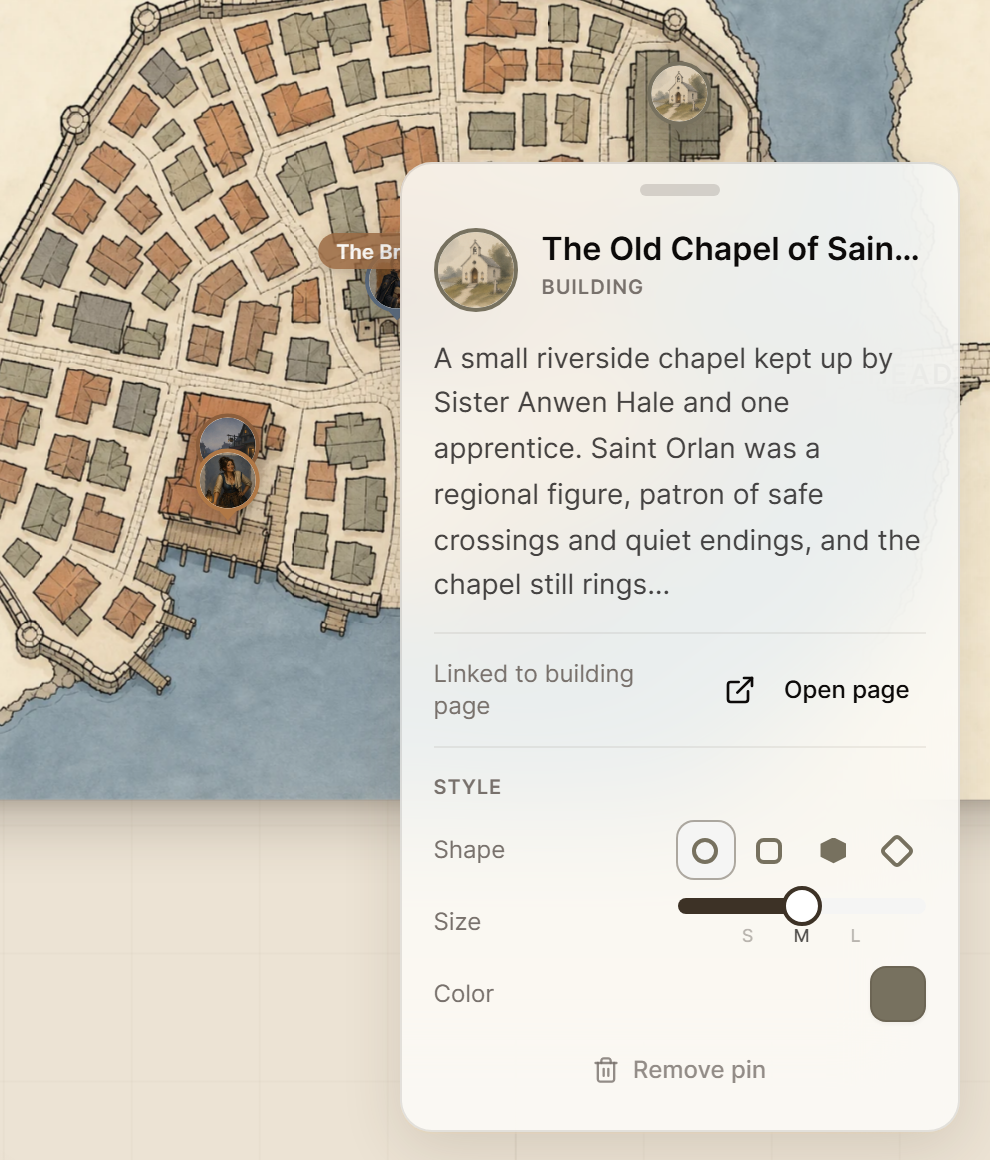
Style, move or remove a pin
Click a pin to open its card. Open page takes you to the linked entry, and Style sets the shape, size and color of that pin. Drag a pin to move it, or select Remove pin on the card to take it off. The map saves as you work.
If every pin feels too small, open Layers and grid in the toolbar and move Marker size. It resizes all the pins on that map at once.
What your players see
Pins appear on the campaign wiki along with the map. A pin linked to a page you hide from the wiki stays off the wiki as well, so you can place a secret early and reveal it later.
On a phone you can pan and zoom a map. Placing pins needs a larger screen, such as a laptop or tablet.
For areas, routes and maps inside maps, see Make interactive maps for your campaign.