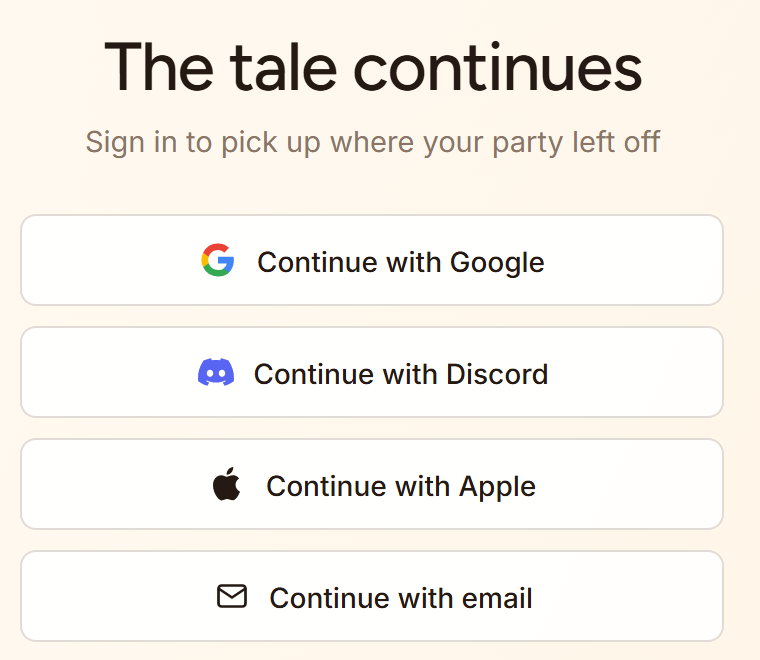
Saga20 supports signing in through Google, Discord, Apple, or email. Pick the very same option you picked when you first signed in, so you end up in the account that holds your campaigns.
The wrong account opens
Go back to the sign-in page and pick the option you used before, for example Continue with Google. Should Google or Discord sign you in as a different person on its own, switch to a private browser window so you can select the correct account.
You forgot your password
- Select Continue with email on the sign-in page.
- Type in your email and choose Continue.
- Choose Forgot password? under the password box.
- Choose Send reset link, then open the link in the email.
Sign-in returns to the login page
- Reload the page and try one more time.
- Turn on cookies for Saga20.
- Turn off a privacy extension for a short while if it blocks sign-in redirects.
- Use a recent version of Chrome, Firefox, Safari, or Edge.
- Use a private window to rule out a stale browser session.
An invite does not open the campaign
A Co-GM invite link works a single time and runs out after seven days. When it displays This invite is no longer valid, ask the person who sent it for a new link. Sign in with the account you wish to use before you choose Accept invite.
Players join through the campaign wiki link instead. See Join a campaign as a player.
If the problem keeps happening, email [email protected] with the account email, the page you were trying to open, and the exact error message. Do not send your password or any security codes.