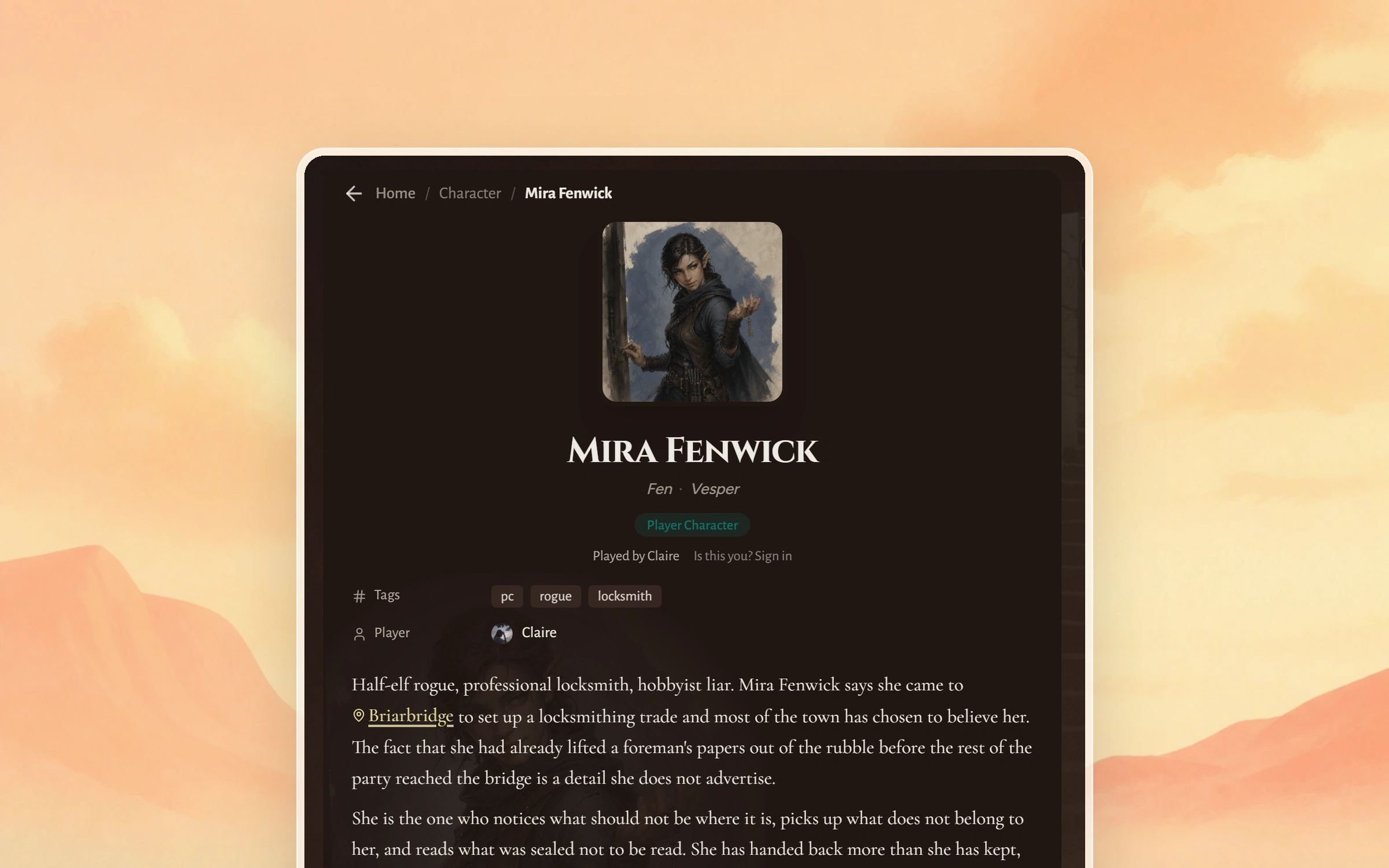
Your game runner runs the campaign in Saga20 and gave you a link to its wiki. This page explains how to read the wiki, claim your character, and keep your character's page current.
Open the link and look around
The link takes you to the campaign wiki, and you do not need an account to read it. You can look through the characters, places, factions and items in the world. You can open the maps and read the recap of every session your game runner has shared.
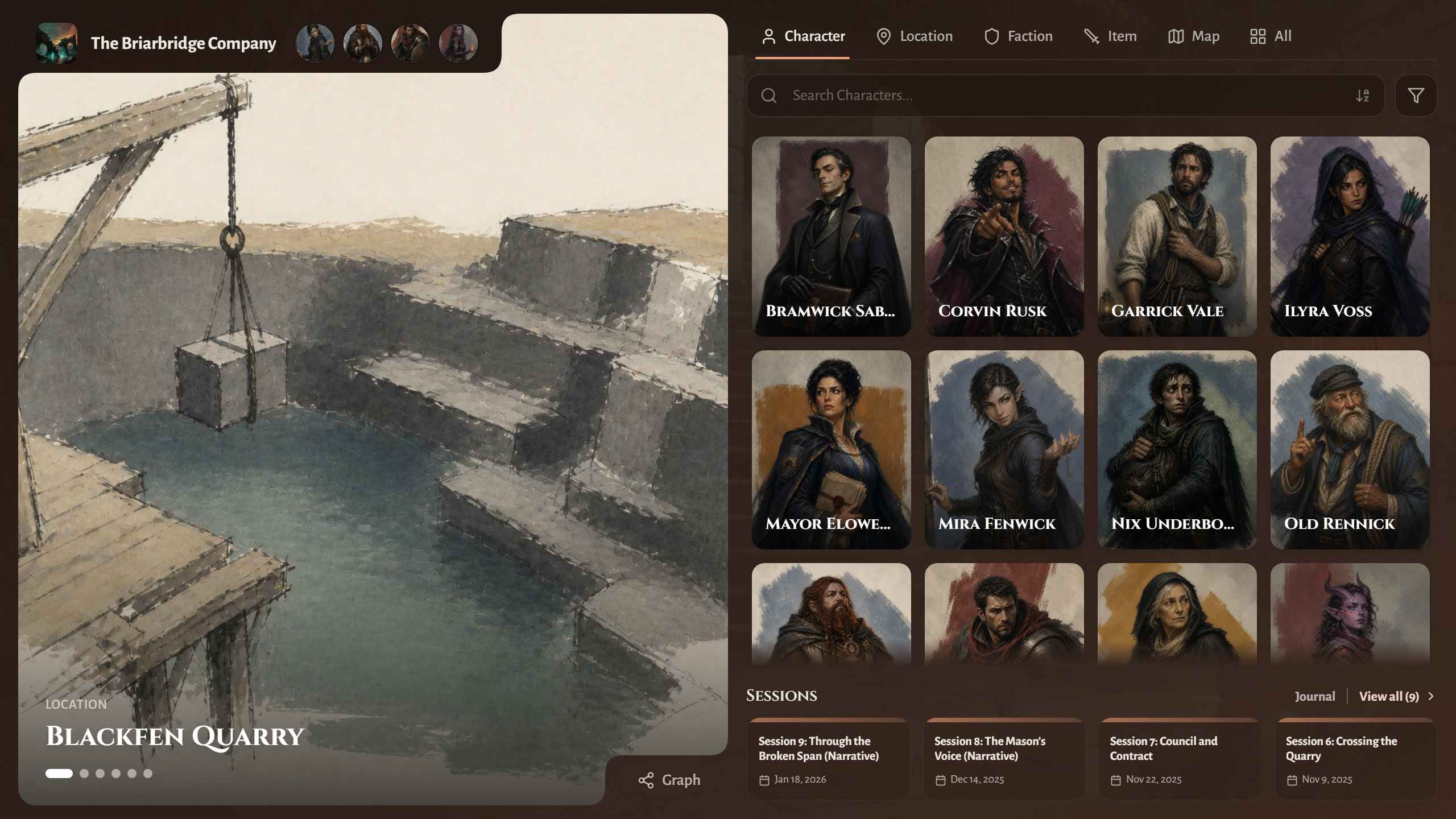
The party's portraits appear next to the campaign name at the top. Recaps sit under Sessions, with View all for the whole list, and Journal opens the Campaign Journal, a running record of quests, threads and where the story stands.
Find your character and claim it
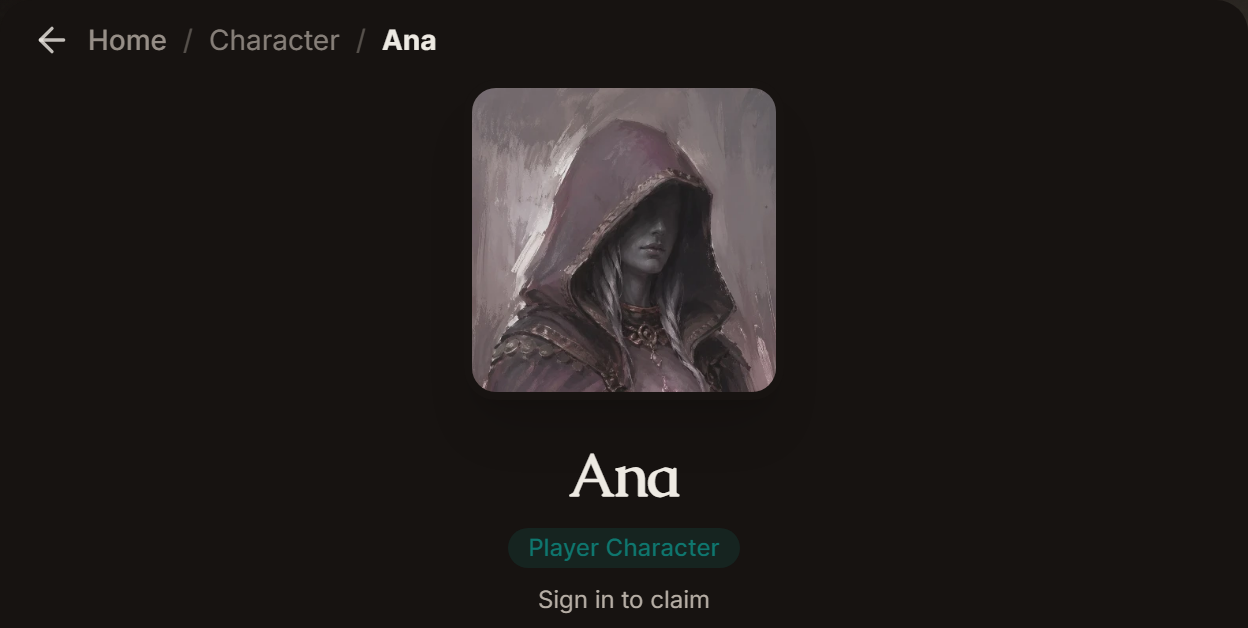
Select your character's portrait at the top, or open the Character tab and use its filter to show Players. On your character's page, select Sign in to claim.
If the page shows another player's name, someone has already claimed the character. Let your game runner know. If there is no claim button at all, ask your game runner to check that your character is set as a player character and that claiming is turned on.
Sign in
Sign in with Google, Discord, Apple or email. Saga20 returns you to the same page, where you select This is my character to send the request.
Player features will always be free, and they work across every campaign you join.
Wait for approval
Your game runner receives an email and approves the request in Saga20. Until that happens, your page reads Awaiting owner approval and the pill in the corner of the wiki reads Claim pending.
After your game runner approves the claim, the pill shows your character's name and the page says Claimed by you. If you picked the wrong character, select the pill to withdraw a pending claim.
Make the page yours
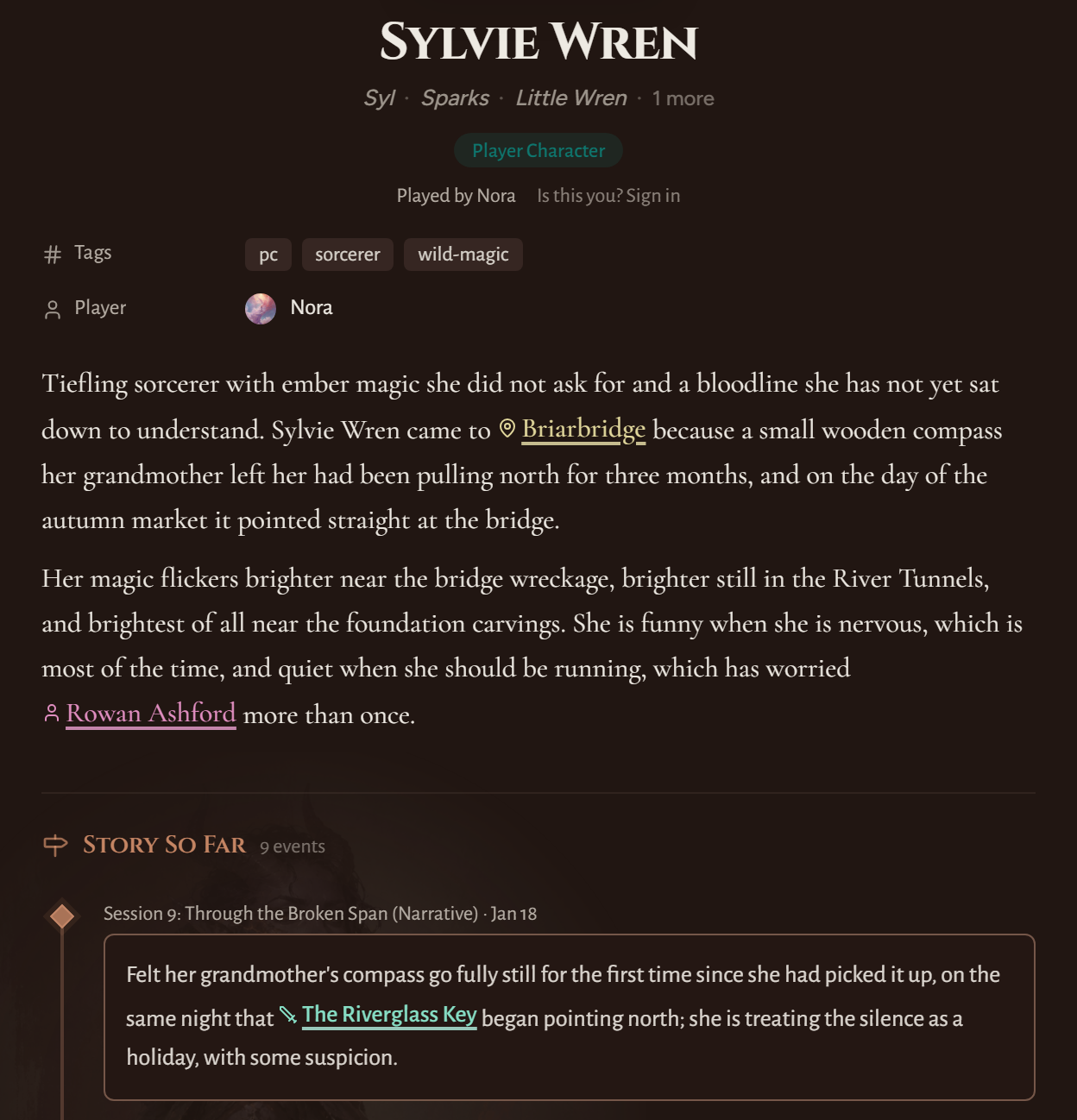
You can now edit your character's page. Write in the description, select the name to rename your character, and select the portrait to change it. You can also add aliases, a status and tags.
Under Story So Far, select Add event to add a moment to your character's story. You can edit or remove any moment you add. For a character sheet, select Immersive, then Add Sheet.
See what your game runner shares with you
New recaps show up under Sessions as your game runner shares them, and the journal keeps up after every session.
Your game runner can also share a secret with you alone. It appears on that page while you are signed in, marked GM note shared with you, and other players never see it.
Bookmark the link, and check your page before each session.